I have a very particular problem: I want to synchronize my Obsidian files across all of my apple devices (Replication), synchronize them to my non-apple devices (also Replication) and make sure they are backed up to protect from corruption or deletion (Backup).
I prefer to use native, free tools especially when they work well. In which case I ought to use iCloud for replication and Time Machine for backups. Unfortunately, iCloud doesn’t work with non-apple devices and Time Machine experiences a fatal corruption every 2-4 years1.
git is free. It is a backup system. And, using it with an origin (remote) server like GitHub, Gitea, GitLabs, Forgejo, etc. provides a second replication system. Familiarity with git will help when reading this article.
The final configuration looks like this:
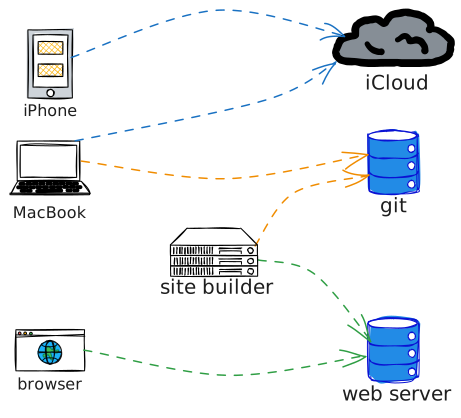
Where to start?
If you know git and iCloud, the most obvious thing to do is place your Obsidian Vault in the iCloud directory and then run git out of it. Obvious, but unfortunately wrong. git stores all of the backup versions of your files in a hidden subdirectory within the same root as your vault markdown files (<vault>/.git/). iCloud happily synchronizes these historic files. git stores a lot of history, and it overburdens iCloud. For iCloud, you don’t need that history, you only need the current files.
Never connect iCloud and git at more than one computer!
iCloud and git have different replication models and when you connect two devices to both iCloud and git you have effectively created a loop across replication systems. Nothing good comes from this.
What to do instead?
git init takes a switch --separate-git-dir which tells git to keep its history directory separate from its working directory. As an aside, the path to the Obsidian iCloud vault is long and ugly (~/Library/Mobile\ Documents/iCloud~md~obsidian/Documents/vault/), let’s create something more convenient.
Killing two birds with one stone:
- Separate the git history from the vault
- Make a shorter path
#  Goto your vault directory
$ cd ~/Library/Mobile\ Documents/iCloud~md~obsidian/Documents/vault/

# Initialize git with separate git-dir
$ git init --separate-git-dir ~/Documents/.vault.git
Initialized empty Git repository in /Users/.../Documents/.vault.git/

# Symbolically link Obsidian iCloud to a local vault directory
$ ln -s ~/Library/Mobile\ Documents/iCloud~md~obsidian/Documents/vault/ ~/Documents/vault

# Verify it looks right: .vault.git holds history, vault links to iCloud vault
$ ls -ld .vault.git vault
drwxr-xr-x@ 16 user  staff  512 Mar 26 07:29 .vault.git
lrwxr-xr-x   1 user  staff   88 Mar 10 06:58 vault -> /Users/user/Library/Mobile Documents/iCloud~md~obsidian/Documents/vault/

# Check status of main
$ cd ~/Documents/vault && git status
On branch main
No commits yet
nothing to commit (create/copy files and use "git add" to track)
The key thing that happens above is the creation of the file ~/Documents/.vault.git which holds the history outside of the iCloud directory. Because it starts with a ‘.’ it will be hidden from view, which is fine. We don’t need to see it, only the machine needs it. We also bring the iCloud folder under Documents using a softlink (ln -s ...).
One last item before we push to origin, add these to .gitignore to keep source control clean.
# Obsidian
.obsidian/workspace.json
.obsidian/workspace-mobile.json
.obsidian/plugins/
.trash/
.DS_Store
Syncing to git origin
At this point, you need to decide on your git origin server. Most people use GitHub. Create an account there, if you don’t already have one. For this project, I set up a local Forgejo server on my home network. I don’t recommend this unless you’re sure you need local source control. If you don’t know why you might need local source control, you don’t need it. Just use GitHub.
Connect to your server account, create a new repository then copy the path to it. The repository path looks something like this: ssh://git@github.com:<username>/vault.git. Link your local repo to the remote origin and push your files to it.
$ git remote add origin git@github.com:<username>/vault.git
$ git push origin main
Any time I change files in my Obsidian Vault, when I want the latest versions to be saved on the origin server and also for them to propagate to my non-Apple devices, I use git commands to make that happen (git add ., git commit -am "added or changed thingy", git push origin main). This is a manual step, not automatic like how iCloud works. Automating this git sync is beyond the scope of this article.
git commands add, commit, push and pull to synchronize with non-Apple devices.
Non-Apple devices
In the diagram above, site builder builds a website from vault data and pushes it up to the cloud. Because it isn’t running on an apple device, we must retrieve vault files from git using a pull command. When I’m ready to build my site, I connect to the site builder’s computer and do the following:
$ git remote add origin git@github.com:<username>/vault.git  # only one time
$ git pull origin main   # pull files down from remote git server
$ service website build  # build my website
$ service website stage  # stage the website for review
Wrap-up
To synchronize files across Apple and non-Apple devices, we start with iCloud sync for our Obisidian files. We connect the iCloud directory to git while keeping the backup directory separate. We connect our local git repository to a central git server and push the files up to origin. On another computer, we sync (pull) those files down from origin. Finally, in this example the vault files are used to build a website, although they could be used for any purpose on the non-Apple system.
-
Unreliable backup systems aren’t backup systems. I’m developing an open source project that provides corruption recovery. ↩︎